Budget Homelab Build: How to Start for Under 200 Dollars
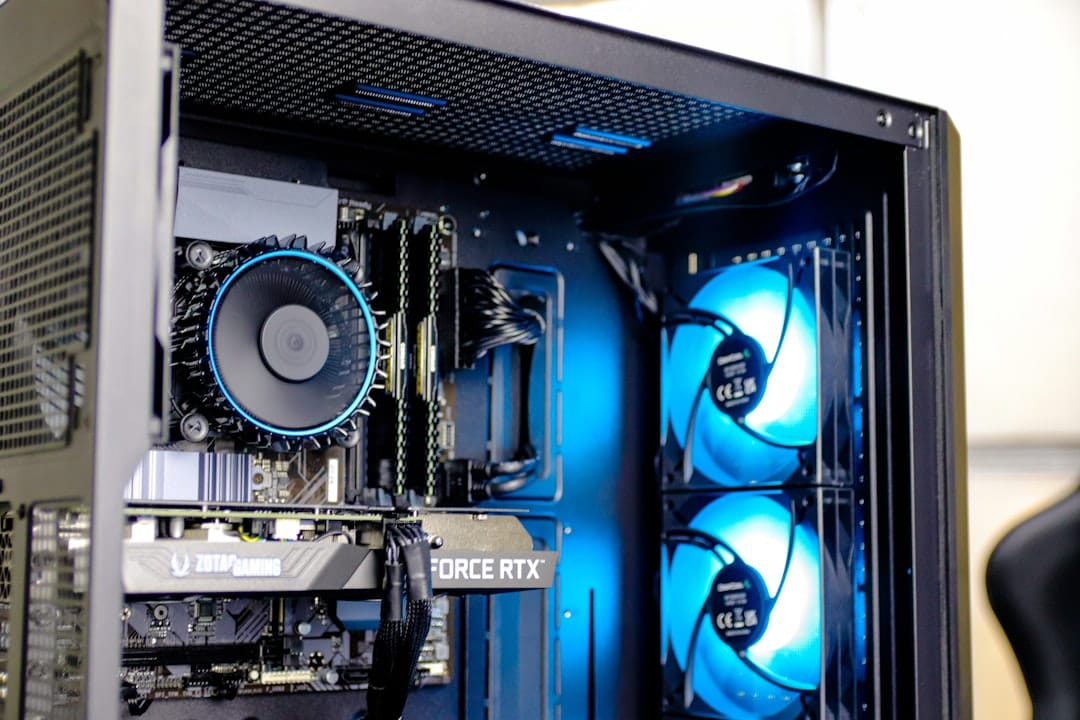
The Hardware Decision: Mini PC vs Raspberry Pi vs Used Enterprise
You've got $200 and want to run self-hosted services at home—but the hardware landscape is fragmented. I'll give you the honest comparison: I've run production workloads on all three approaches, and each has a different breaking point.
Raspberry Pi 5 (8GB) costs $80–90 and maxes out at CPU-bound tasks. Single-threaded performance is respectable, but thermal throttling under load is real. You'll hit diminishing returns quickly with Docker containers. Good for: DNS, Wireguard VPN, Home Assistant, single-app deployments.
Mini PC (Beelink, MINISFORUM, Qotom) in the $120–180 range gives you x86-64 CPU, 16GB RAM options, and actual multitasking headroom. On my Beelink SER6 Pro (N6005, 16GB, 512GB SSD), I run Proxmox, 4–5 concurrent containers, and a lightweight database without sweat. This is the sweet spot for a beginner homelab 2026 build.
Used enterprise gear (Dell SFF/USFF) shows up on eBay for $80–120: older Optiplexes, Precisions, or refurb Lenovo ThinkCentres. RAM and storage are often cheaper to upgrade. Trade-off: power draw is 35–50W idle, versus 8–12W for a mini PC. Over 24/7 operation, that's $20–30/month in electricity in the US.
My recommendation for a $200 budget homelab: spend $140 on a Beelink/MINISFORUM with 16GB RAM and 512GB storage, $30 on a 2.5" SATA SSD for expansion, $20 on Ethernet and power cables you don't have. Skip the Raspberry Pi unless you already own one. You'll thank yourself when you need to run two services simultaneously.
Prerequisites: Exact Hardware and Software Stack
Here's what I'm assuming you have and what you'll need:
- Hardware: Beelink SER7 Pro or equivalent (N100 CPU, 16GB DDR4, 512GB NVMe) — ~$130–160 on Amazon/AliExpress
- OS: Ubuntu Server 24.04.1 LTS (minimal install, no GUI)
- Docker: 26.1.3 or later (via official Docker repo, not snapd)
- Docker Compose: 2.27.0+ (installed as plugin)
- Hypervisor option: Proxmox 8.2 (if you want lightweight virtualization)
- Networking: Gigabit Ethernet, direct connection to home router (not WiFi)
- Power: 60W+ USB-C PD or barrel connector (check your mini PC spec sheet)
- Storage: One 2.5" or M.2 NVMe for OS, second drive for data
Gotcha #1: Don't cheap out on the power supply. A $10 bargain adapter will thermal-throttle your CPU under sustained load. Verify the wattage on your device's spec sheet—most mini PCs under $150 need 30–45W.
The Budget Mini PC: Where to Buy and What to Check
You'll find mini PCs on Amazon, AliExpress, and direct from brands like Beelink, MINISFORUM, and Qotom. Prices fluctuate—I've seen the Beelink SER7 Pro drop to $119 during sales.
Checklist before purchase:
- CPU: N100, N95, or 12th-gen Intel (avoid Celeron, stick with Core i3 or better for used enterprise)
- RAM: 16GB minimum (8GB will bottleneck Docker containers quickly)
- Storage: 512GB NVMe SSD, not eMMC (eMMC fails fast under daily writes)
- Power: USB-C PD or barrel connector, verify wattage
- Thermals: Aluminum passive heatsink preferred (no fan = less failure points)
- Warranty: Direct manufacturer preferred; sketchy sellers on AliExpress have high return rates
Gotcha #2: Chinese mini PC listings often have vague RAM/storage specs. Request a screenshot of CPU-Z and CrystalDiskInfo before committing. I once received a "16GB" Beelink that shipped with 8GB and a dying SSD.
For used enterprise, check: CPU generation (6th Intel or newer), RAM slots available, BIOS passthrough capability if you plan Proxmox later, and realistic power consumption. An older i5-6500 ThinkCentre will draw 2–3x the power of a mini PC.
OS Installation and First Boot Configuration
Download Ubuntu Server 24.04.1 LTS minimal image (~2GB) and write it to a USB stick using Balena Etcher or dd.
# On your laptop, verify the USB device name
lsblk

# Write image (replace /dev/sdX with your USB device, e.g. /dev/sdb)
sudo dd if=ubuntu-24.04.1-live-server-amd64.iso of=/dev/sdX bs=4M status=progress

# Eject
sudo eject /dev/sdX
Insert USB into mini PC, boot (usually F12 or Del during startup), and select the USB device. Follow the Ubuntu installer: choose "minimal install" (no snapd), set static IP, enable OpenSSH.
Once booted, log in and update everything:
sudo apt update && sudo apt upgrade -y
sudo apt install -y curl wget git htop iotop net-tools vim

# Check your hardware
uname -a
free -h
lsblk
Docker and Docker Compose: Container-First Architecture
Docker is non-negotiable for a budget homelab. It isolates services, makes backups trivial, and lets you run multiple apps on minimal hardware.
Install Docker from the official repository (avoid snapd—it's slower and wastes RAM):
# Add Docker repo
curl -fsSL https://download.docker.com/linux/ubuntu/gpg | sudo gpg --dearmor -o /usr/share/keyrings/docker-archive-keyring.gpg

echo "deb [arch=amd64 signed-by=/usr/share/keyrings/docker-archive-keyring.gpg] https://download.docker.com/linux/ubuntu $(lsb_release -cs) stable" | sudo tee /etc/apt/sources.list.d/docker.list > /dev/null

# Install
sudo apt update
sudo apt install -y docker-ce docker-ce-cli containerd.io docker-buildx-plugin docker-compose-plugin

# Verify
docker --version
docker compose version
Add your user to the docker group (so you don't need sudo every time):
sudo usermod -aG docker $USER
newgrp docker

# Verify (no sudo needed)
docker ps
Create a directory structure for your services:
mkdir -p ~/homelab/{postgres,nginx,volumes}
cd ~/homelab
Your First Services: Nginx and Portainer
Start with a reverse proxy (nginx) and a container management UI (Portainer). This gives you HTTP routing and visibility into what's running.
Create a docker-compose.yml in your homelab directory:
version: '3.8'

services:
  nginx:
    image: nginx:latest
    container_name: nginx-proxy
    ports:
      - "80:80"
      - "443:443"
    volumes:
      - ./nginx/conf:/etc/nginx/conf.d
      - ./nginx/certs:/etc/nginx/certs
    restart: unless-stopped
    networks:
      - homelab

  portainer:
    image: portainer/portainer-ce:latest
    container_name: portainer
    ports:
      - "8000:8000"
      - "9000:9000"
    volumes:
      - /var/run/docker.sock:/var/run/docker.sock
      - ./volumes/portainer:/data
    restart: unless-stopped
    networks:
      - homelab

networks:
  homelab:
    driver: bridge
Launch:
cd ~/homelab
docker compose up -d

# Check status
docker compose logs -f
Access Portainer at http://your-mini-pc-ip:9000, set an admin password, and you'll see all running containers in a web UI.
Storage Strategy for Tight Budgets
Your mini PC comes with 512GB NVMe. That's enough for OS + 2–3 services, but you'll want persistent storage for databases and user files. Buy a second 2.5" SSD (~$30 for 1TB) and mount it as a data partition.
# Check your new drive
lsblk

# Partition and format (assuming /dev/sda is your new drive)
sudo parted /dev/sda mklabel msdos
sudo parted /dev/sda mkpart primary ext4 0% 100%
sudo mkfs.ext4 /dev/sda1

# Create mount point
sudo mkdir -p /mnt/data
sudo mount /dev/sda1 /mnt/data

# Make it permanent
sudo blkid /dev/sda1
# Copy the UUID, then edit fstab
sudo nano /etc/fstab

# Add line (replace UUID with actual value):
# UUID=xxxxx /mnt/data ext4 defaults 0 2

sudo mount -a
df -h
Store all persistent Docker volumes here:
sudo chown $USER:$USER /mnt/data
mkdir -p /mnt/data/docker-volumes
ln -s /mnt/data/docker-volumes ~/homelab/volumes
Common Issues and Gotchas
Docker out of disk space: Even with a second drive, your OS partition fills up if logs aren't rotated. Configure docker daemon logging:
sudo nano /etc/docker/daemon.json
{
  "log-driver": "json-file",
  "log-opts": {
    "max-size": "10m",
    "max-file": "3"
  }
}
Restart docker:
sudo systemctl restart docker
Thermal throttling under sustained load: If your mini PC slows down after 10 minutes of heavy container use, check thermals:
watch -n 1 "cat /proc/cpuinfo | grep MHz"
If MHz drops during container activity, your power supply is undersized or the device needs better ventilation. I've had success placing a mini PC in an open shelf (not enclosed) with a small 12V USB fan nearby.
Static IP not persisting: Ubuntu 24.04 uses Netplan. Edit /etc/netplan/01-netcfg.yaml, set a static IP, then run sudo netplan apply. If DHCP reassigns after reboot, check your router's lease time and manually reserve the IP.
Docker containers can't resolve DNS: This usually means your docker network bridge isn't forwarding to your host's resolver. Verify /etc/resolv.conf and restart the docker daemon:
sudo systemctl restart docker
docker exec -it portainer cat /etc/resolv.conf
Next Steps: What You Have Now
You've built a functioning homelab for under $200 with:
- A capable mini PC (16GB RAM, N100 CPU, dual storage) running Ubuntu 24.04
- Docker and Docker Compose for containerized workloads
- Nginx as a reverse proxy (setup ready, config incomplete)
- Portainer for visual container management
- Persistent storage on a second drive
From here, deploy services you actually need: Pihole for DNS filtering, Jellyfin for media streaming, Vaultwarden for password management, or a lightweight Git server. Each adds $0 (it's already containerized) and takes 5 minutes to add to your compose file.
Document your docker-compose.yml in version control (GitHub, Gitea), and back up your /mnt/data volume weekly. That's the difference between a toy homelab and one that survives hardware failure.
Disclosure: This post contains affiliate links. If you purchase through these links, we may earn a small commission at no extra cost to you. We only recommend services we've tested and trust.