TrueNAS Scale: Complete Homelab NAS Setup Guide
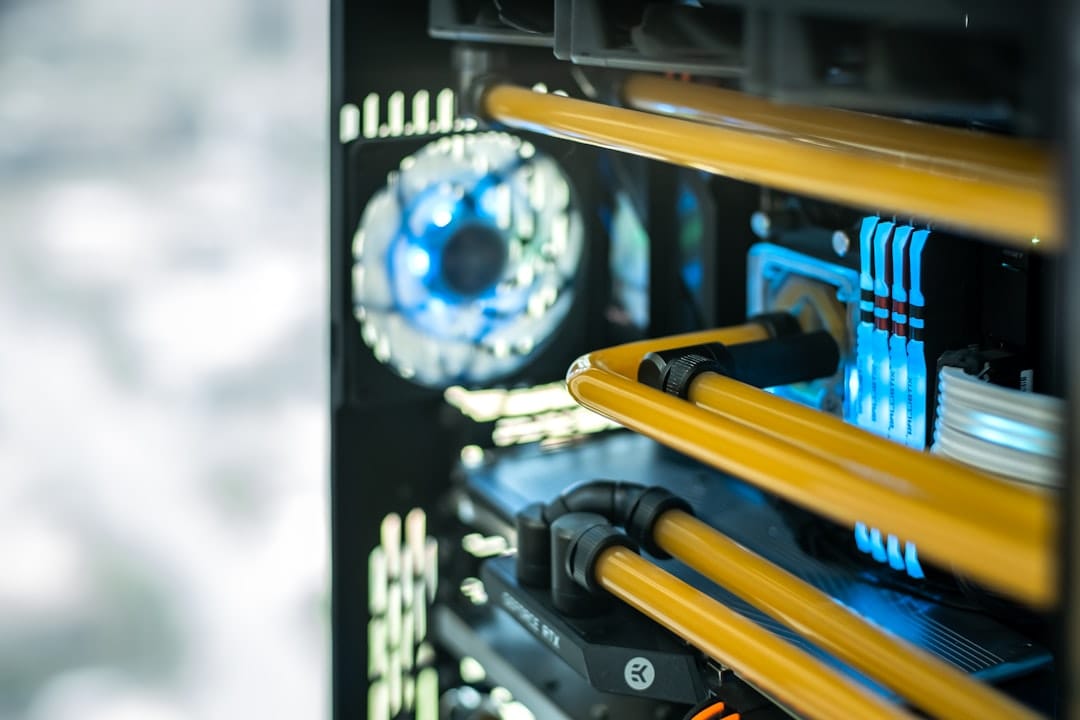
Setting up TrueNAS Scale for homelab production
You need reliable, self-hosted storage with native Docker support, automated backup, and zero licensing headaches—TrueNAS Scale delivers all three, but the initial configuration has enough depth that skipping steps creates operational debt later.
This guide assumes you're deploying TrueNAS Scale 24.04.1 on dedicated hardware with at least 8GB RAM (16GB if running Kubernetes apps), 4 CPU cores minimum, and drives you're comfortable erasing.
Prerequisites
- TrueNAS Scale 24.04.1 LTS (download from truenas.com)
- USB 3.0 drive, 8GB+ for installer
- System with UEFI firmware, 4+ cores, 8GB+ RAM
- Dedicated drives for pool (NVMe or HDD, same model/size per vdev strongly recommended)
- Static IP planning—DHCP works initially but you'll assign static immediately
- Network connectivity; TrueNAS Scale uses 443 (web UI), 139/445 (SMB)
On my T5810 test box with 24GB RAM running Ubuntu before migration, I allocated four 4TB WD Red drives and a 256GB NVMe for L2ARC. ZFS is unforgiving with undersized RAM—each TB of storage roughly needs 1GB for ARC, and TrueNAS Scale's Kubernetes layer eats another 2-3GB baseline.
Installing TrueNAS Scale and initial configuration
Flash the ISO to USB with dd or Etcher, boot the target system from USB with UEFI enabled, and the installer guides you through partition selection and root password. Once booted, you'll land at a blue console menu showing your assigned IP.
# On your workstation, if using dd:
sudo dd if=TrueNAS-SCALE-24.04.1.iso of=/dev/sdX bs=4M conv=fsync status=progress
# Replace /dev/sdX with your USB device—check lsblk first, no jokes here
Navigate to that IP address in your browser (e.g., https://192.168.1.50). Accept the self-signed cert. Default credentials are admin / admin—change this immediately in System Settings.
Gotcha #1: TrueNAS Scale will detect your installer USB as a storage device. On the System > Storage page, if you see an unexpected drive listed, verify it's not your system boot drive before touching it. I once almost wiped the system partition because the USB remained visible.
Creating your first ZFS pool with redundancy
Navigate to System > Storage, click "Create Pool". Name it something descriptive like tank (the traditional ZFS pool name). Select your data drives—use all four if you want RAIDZ1 (one-parity redundancy), which survives one drive failure.
Under "Recommended Layout," TrueNAS Scale auto-configures vdevs. For four identical 4TB drives, select RAIDZ1 stripe type. This creates one vdev with 4 drives, 3TB usable capacity, and one simultaneous drive failure tolerance.
# After pool creation, verify from SSH:
sudo zpool list
# Output: NAME    SIZE  ALLOC   FREE  CKPOINT  EXPANDSZ   FRAG    CAP  DEDUP  HEALTH  ALTROOT
# tank   11.7T   104K  11.7T        -         -     0%     0%  1.00x  ONLINE  -

sudo zfs list
# Shows your datasets and snapshots
Immediately add that NVMe as L2ARC (read cache) to front-end your slow spinning drives. System > Storage, select pool, click "Expand Pool" (confusingly named—it doesn't expand capacity), select "Log" for the NVMe device type. This won't appear in zpool list free space but will accelerate reads dramatically.
Gotcha #2: L2ARC survives reboot only if you've configured it as part of the pool vdev, not as a separate hot-spare. Once expanded with Log, you'll see it in zpool status tank under the cache section. Don't panic if stats show "0B" initially—it fills as you use the pool.
Setting up SMB shares for homelab clients
You'll create two datasets: one for active work, one for backups. Then share them via SMB (Windows/Mac compatible) rather than NFS, which requires more permission tuning in a homelab.
# SSH into TrueNAS, create two datasets:
sudo zfs create tank/media
sudo zfs create tank/backups

# Set basic permissions (adjust as needed):
sudo chmod 755 /mnt/tank/media
sudo chmod 755 /mnt/tank/backups
In the TrueNAS Scale web UI, navigate to Shares > SMB. Click "Create". Set:
- Path:
/mnt/tank/media - Name:
media - Purpose: Default Share
- Enable: Checked
- Leave ACLs and permissions at defaults for initial setup
Repeat for /mnt/tank/backups. Then visit System > Services, find SMB, toggle it on. The service starts immediately.
From a Windows/Linux homelab machine:
# Linux client:
sudo mount -t cifs -o username=admin,password=yourpassword //192.168.1.50/media /mnt/truenas-media

# macOS client (from Finder: Cmd+K, then):
smb://admin:[email protected]/media
Test write permissions by creating a file. If you get "Permission denied," check TrueNAS > System > Settings > Advanced > SMB and ensure "Syslog" is enabled for debugging. You likely need to adjust dataset ACLs under Dataset > Edit > Permissions, switching from "POSIX" to "NFSV4" mode.
Configuring automated ZFS snapshots with retention
ZFS snapshots are your undo button. Configure automatic hourly snapshots of the media dataset with 7-day retention using Periodic Snapshot Tasks.
Navigate to Data Protection > Periodic Snapshot Tasks. Click "Create". Set:
- Dataset:
tank/media - Recursive: Enabled (captures child datasets if you create them)
- Lifetime: 604800 seconds (7 days)
- Frequency: Hourly
- Naming schema: Leave default (
auto-%Y%m%d.%H-%M)
Save. TrueNAS will create the first snapshot immediately and run hourly. Verify:
# SSH to TrueNAS:
sudo zfs list -t snapshot
# Shows auto-YYYYMMDD.HH-MM snapshots under tank/media
To recover a deleted file, navigate to the share in your SMB client, look for a hidden .zfs/snapshot folder (on macOS: Cmd+Shift+. to show hidden files), browse to the snapshot timestamp you want, and copy the file out. No UI needed—it's baked into the filesystem.
Deploying containerized apps with Kubernetes integration
TrueNAS Scale includes Kubernetes (k3s) pre-installed. You'll deploy apps through the web UI rather than kubectl commands. This means no manual YAML or Helm—UI-driven, but opinionated.
Navigate to Apps. The first time you visit, TrueNAS initializes a k3s pool (takes ~2 minutes, watch System > Services > Kubernetes). Once ready, click "Available Applications." You'll see official TrueNAS Approved charts: Home Assistant, Jellyfin, Plex, Syncthing, etc.
Deploy Jellyfin (media server) as an example:
- Search "Jellyfin", click it
- Click "Install"
- Name:
jellyfin-prod - Under "Jellyfin Configuration" → "General Settings", set "Media Libraries" path to
/mnt/tank/media - Leave networking at default (ClusterIP), or set Ingress to expose port 8096 externally
- Click "Install"
The pod launches in ~90 seconds. Check Apps > Installed, find jellyfin-prod, click to see its status and access URL (usually http://192.168.1.50:30008 or similar, shown in the UI). Access the web interface, add your media libraries from the SMB mount you created, and let it scan.
Gotcha #3: Apps store their databases in k3s-managed PersistentVolumes on your system dataset, not on your data pool. If you want app data to survive hardware failure, you'll need to configure backup destinations separately (see Data Protection > Replication Tasks).
Hardening and ongoing maintenance
Before going production, address three essentials:
1. Static IP assignment: Network > Interfaces, click your primary NIC, toggle "DHCP" off, set static IP (e.g., 192.168.1.50/24), gateway (192.168.1.1), DNS (8.8.8.8). Save and apply.
2. Enable SSH access: System > Services, toggle SSH on. From a workstation, ssh [email protected] for emergency access if the web UI hangs.
3. Configure email alerts: System > Settings > Email. Set your mail server (Gmail SMTP on port 587 works with an app-specific password). Check "Send test email" immediately. TrueNAS then emails you ZFS errors, pool warnings, and snapshot failures.
Schedule weekly pool scrubs to catch silent data corruption. Data Protection > Periodic Scrub Tasks > Create. Set "tank" pool, frequency "Weekly", day "Sunday 02:00". Scrubs take hours on large pools but run in the background.
Common issues and debugging
SMB shares not visible on network: Check System > Services > SMB is enabled, check firewall rules on your router/host (ports 139, 445 must be open to your subnet), and verify the dataset exists at zfs list. If shares appear but mount fails with "Permission denied," toggle to SSH and manually test:
sudo smbclient -L 192.168.1.50 -U admin -p 445
# Lists available shares; if none appear, check SMB service logs at System > Event
Apps not accessing mounted datasets: Kubernetes pods run in a containerized environment. You must explicitly mount your NAS datasets into the pod. In the app install UI, look for "volumes" or "mounts" section—add /mnt/tank/media as a hostPath volume. Without this, the app sees an empty filesystem.
ZFS pool import errors after reboot: If TrueNAS won't boot and complains about pool import, SSH in and run:
sudo zpool list -D
# Shows disconnected pools; import manually:
sudo zpool import tank
L2ARC not improving read performance: L2ARC only helps if your hot working set (files you read repeatedly) exceeds ARC size. Run sudo arcstat.py 1 10 from SSH to watch cache hit ratio. If hits are already 95%+, L2ARC won't help. If you have gigabytes of cold data, L2ARC won't fill fast enough to matter—it's for specific warm-working-set scenarios.
Next steps and related reading
You now have a production-grade homelab NAS with replicated storage, automated snapshots, containerized apps, and operational monitoring. For advanced setup:
- Disaster recovery: Configure replication tasks to sync tank datasets to a second pool or remote host. Data Protection > Replication Tasks sets up one-way or bidirectional sync.
- Encrypted shares: For sensitive data, create encrypted datasets (
zfs create -o encryption=on tank/sensitivefrom SSH), then share them separately with different credentials. - Resource limits on apps: TrueNAS Kubernetes doesn't enforce memory limits by default; your Jellyfin scan can eat all RAM. Edit the installed app, set memory requests/limits explicitly (usually under "Resources" in advanced settings).
Monitor pool health weekly via System > Information > Disk > Health. If you see Yellow or Red status on a drive, that vdev is degraded—run zpool status tank from SSH to confirm which drive failed, order a replacement (same model, same capacity), and follow TrueNAS's "Replace Disk" workflow to resilver automatically.